


Microsoft OneNote: Save Notes
4.653.68K Reviews
App Specs
- Version
- 16.0.20228.20128
- Updated On
- License
- Free
- Downloads
- 1,000,000,000+
- Developer
- Microsoft Corporation
- Categories
- Productivity
- Platform
- Android, iOS
Screenshots
 Analysis by AppCompare
My most useful notes are rarely polished when I first make them. They are scraps: a phrase from a meeting, a shopping measurement, or a question I want to remember before it disappears. Microsoft OneNote: Save Notes makes that kind of capture feel less temporary by giving rough ideas a place to grow into organized pages. What I find most valuable is not simply having a digital notebook, but being able to put information into a structure I can revisit and search later.
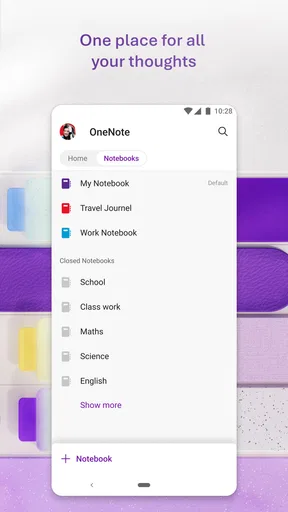
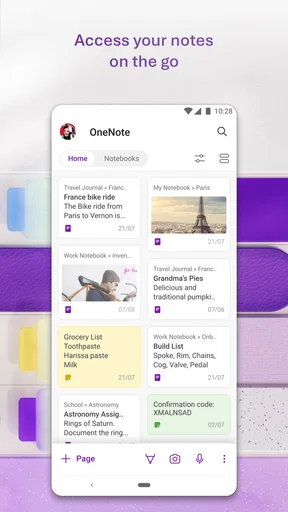
That structure is the app’s defining strength. Rather than forcing every thought into one long list, OneNote gives me notebooks, sections, and pages. I can keep separate areas for work, home, or study, then divide a larger subject into smaller pages. This is especially useful when a note begins as a quick reminder but gradually becomes a reference I return to. The trade-off is that the system asks me to make some organizational choices; if I create too many notebooks and sections, deciding where a new thought belongs can slow down capture.
Getting Started with OneNote
First off, let's talk about setting up OneNote. It's a breeze. Whether you're on Android or iOS, the download is quick, and you can sign in with your Microsoft account to sync across all your devices. The interface is clean and intuitive, with notebooks, sections, and pages all laid out in a way that makes sense.
Guides and Analysis on Microsoft OneNote: Save Notes
Once you're in, creating a new note is as simple as tapping the plus sign. You can type out your notes, draw them with your finger, or even dictate them if you're on the go. The flexibility here is impressive, allowing you to capture your thoughts in whatever way suits you best at the moment.
Features That Stand Out
Now, let me tell you about some of the features that really make OneNote shine. For starters, the search functionality is top-notch. If you're like me and have a million notes, being able to search through them quickly is a lifesaver. Just type in a keyword, and OneNote will pull up every note containing that word. It's fast and super efficient.
Search is more than a rescue tool for old notes; it also changes how I decide to file a new one. If I am unsure whether a detail belongs in a project page or a general reference section, I can capture it where it is convenient and search for it later. That works best when I use distinctive terms in headings and write enough context around a short fragment. A note titled “call” is hard to recognize months later, while “call plumber about kitchen tap” is much easier to find and understand.
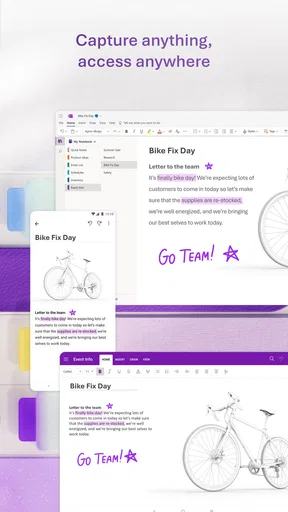
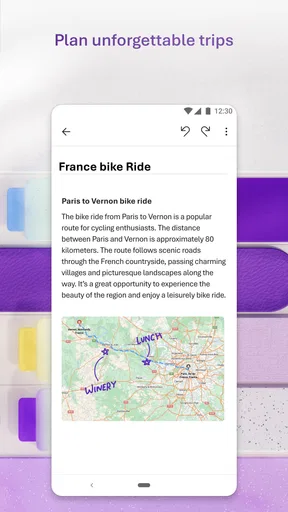
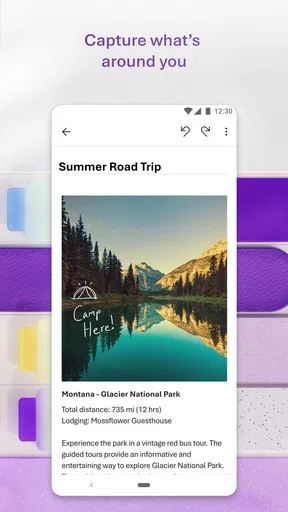
OneNote also supports multimedia notes. You can embed images, audio clips, and even videos directly into your notes. This makes it perfect for capturing everything from lectures to brainstorming sessions. Plus, the ability to annotate PDFs is a game-changer for students or professionals who need to mark up documents on the fly.
Worth Reading Before You Choose

WEBTOON Turns Phone Updates Into a Better Reading Routine

Link to Windows Runs on Shared Habits, Not Social Feeds

How Alibaba.com Dominates the B2B Marketplace

Metro's Quiet Rise: Redefining Mobile Communication

Harnessing Ecosystem Power with Phone Tracker by Number

Why Amazon Alexa Is Becoming the Household Layer for Smart Homes
For a practical workflow, I like pairing a quick text note with a photo when the image carries details that are awkward to describe: a whiteboard after a discussion, a product label, or a page I need to refer to later. The useful part is keeping the image beside my own explanation, so I do not have to remember why I saved it. With audio or other media, I would still add a short title or takeaway; collecting a recording without a clue about its subject can make the notebook feel cluttered rather than helpful.
- Syncs across all devices
- Rich text editing options
- Collaboration features
- Customizable tags for organization
Collaboration and Sharing
One of the killer features of Microsoft OneNote: Save Notes is its collaboration capabilities. You can share your notes with friends, classmates, or colleagues and work on them together in real-time. It's like having a virtual meeting room where everyone can contribute and see changes as they happen. Perfect for team projects or group study sessions.
Sharing is straightforward as well. You can generate a link to your notes or invite others via email. And don't worry about privacy—there are options to control who can edit or just view your notes.
I find shared pages most useful when a group needs one evolving record rather than a chain of messages: a study outline, a meeting agenda, or a list of decisions and follow-up tasks. A small habit makes collaboration clearer: give the page a specific title, put the current question near the top, and label action items so people can tell what still needs attention. For sensitive personal material, I would keep it in a separate notebook and check the sharing settings before inviting anyone; convenience is not a reason to mix private notes with a collaborative page.
Customization and Personalization
Let's not forget how customizable OneNote is. You can choose different paper styles for your notes, like ruled or grid paper, which is great for different types of projects. Plus, with a variety of colors and highlighters, you can make your notes as vibrant or as professional as you need them to be.
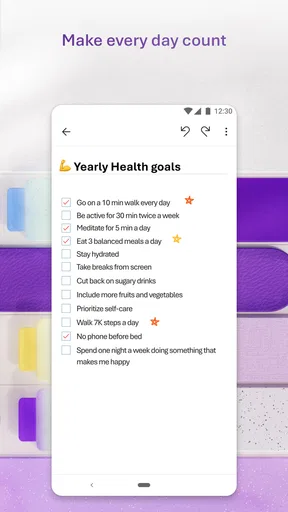
If you're a fan of organizing, you'll love the ability to create tags. These let you categorize notes by type or importance, making it easy to filter through them later. It's like having your own personal assistant keeping track of everything for you.
My advice is to keep tags simple and consistent. A small set for things such as questions, decisions, or tasks is easier to use than inventing a new label every time I start a page. Tags are most valuable when they help me take a next step, not when they become another decoration to maintain. Likewise, color can clarify a page, but relying on several colors without a personal rule can make quick scanning harder. I use formatting to distinguish meaning, not merely to make a page look busy.
Integration and Accessibility
Integration with other Microsoft services is seamless. Whether you're pulling in data from Excel, attaching a PowerPoint, or integrating with Outlook, it all works smoothly together. This interconnectedness makes OneNote a fantastic choice for anyone already invested in the Microsoft ecosystem.
Accessibility is another area where OneNote scores high. It's equipped with a variety of options to make sure everyone can use it effectively, from voice dictation to screen reader support. Microsoft has clearly put thought into making sure this app is usable for all.
A realistic day-to-day example shows where the notebook approach pays off. I might start a page for a home repair, dictate a reminder while I am away from my desk, add a photo of the part I need, and later record the measurements and questions to ask. When I speak with someone about the repair, the relevant details are together instead of scattered among a task list, camera roll, and scraps of paper. The same pattern works for a class topic or a project: create one page for the subject, then add dated notes or supporting material as the work develops.
That does not mean OneNote replaces every tool. Compared with a minimalist notes app, it offers more room for hierarchy and mixed-format pages, but it can feel heavier if all I want is a single, instant checklist. A dedicated task manager is usually better when deadlines, reminders, and a clear queue of actions are the priority. A plain document editor can be a better fit for a finished report that needs a linear layout. I choose OneNote when I expect information to accumulate and need to connect related pieces, not just when I need to write one short item.
People often ask whether they need to organize everything before they begin. I would not wait for a perfect system: start with a notebook for a real subject, make a page, and refine the sections when a pattern becomes obvious. The app is free, so it is easy to try without making a purchase decision, and it is rated for everyone. Microsoft Corporation develops it; its broad adoption is reflected in an average rating of 4.6 from around 1.5 million ratings and more than 1 billion installs. The current version is 16.0.19929.20122, while the app first appeared on February 7, 2012.
OneNote is a particularly good match for students who keep materials for several courses, people whose work generates meeting notes and reference details, and anyone who likes to combine writing with visual or audio material. It is also useful if you move between devices and want a notebook that can travel with you. I would steer away from it if I strongly prefer a single flat list, rarely revisit old information, or find choosing folders and sections more distracting than helpful. The best setup is the one you will actually maintain, and a simpler tool can win if structure feels like overhead.
To wrap it up, Microsoft OneNote: Save Notes is a versatile, reliable app that caters to a wide range of needs, from casual note-taking to serious project management. Whether you're a student trying to keep track of lecture notes or a professional needing a robust organizational tool, OneNote has got you covered. It's more than just a note-taking app; it's a platform that transforms how you capture and organize information.
So, if you haven't already, give OneNote a spin. You might just wonder how you ever got by without it!
Pros
- Seamless integration with Office suite.
- Rich multimedia note-taking options.
- Cross-platform synchronization.
- Robust organizational tools.
- Collaborative features for teamwork.
Cons
- Can be resource-heavy on older devices.
- Complex UI for new users.
- Limited offline functionality.
- Occasional sync issues reported.
- No true dark mode available.
FAQs for Microsoft OneNote: Save Notes
What platforms is Microsoft OneNote available on?
Microsoft OneNote is available on a variety of platforms, including Android, iOS, Windows, and macOS. This cross-platform compatibility allows users to access their notes from virtually any device, ensuring seamless synchronization and accessibility whether you're using a smartphone, tablet, or computer.
Is Microsoft OneNote free to use?
Yes, Microsoft OneNote is free to download and use. While the app offers a robust set of features without cost, additional premium features and storage options are available through a Microsoft 365 subscription. This subscription can enhance functionality and provide more storage space for your notes.
How does synchronization work in Microsoft OneNote?
Synchronization in Microsoft OneNote is straightforward and efficient. Notes are automatically synced across all your devices using OneDrive, Microsoft's cloud storage service. This means any changes you make on one device will be reflected on all others, ensuring your notes are always up-to-date and accessible anywhere.
Can I collaborate with others using Microsoft OneNote?
Yes, Microsoft OneNote offers excellent collaboration features. You can share notebooks with others, allowing multiple users to view and edit content simultaneously. This makes it a great tool for team projects, shared planning, and collaborative brainstorming sessions, enhancing productivity and teamwork.
What organization features does Microsoft OneNote offer?
Microsoft OneNote provides a variety of organization features to keep your notes tidy and accessible. Users can create multiple notebooks, sections, and pages, and take advantage of tags, search functions, and custom templates. These features help streamline note-taking and ensure you can quickly find and access information when needed.


